
Showing posts with label Digital Presentations. Show all posts
Showing posts with label Digital Presentations. Show all posts
Monday, 17 November 2014
Frances Rocks Speech The Desire To Inspire
After 40 years teaching, this keynote speech was delivered by Frances Rocks at the INOTE conference in 2014 to other English Teachers around Ireland. The speech is entitled The Desire To Inspire. Audio recorded by Eoghan Evesson. Visuals sourced by Marcus Howard.

Thursday, 26 September 2013
Digital Presentations Creating a New Presentation
Most of the tutorials on this blog will be in Powerpoint 2010 for the moment as it is one of the more widely used versions of presentation software in the workplace in Ireland as well as being the version that is installed in colleges and schools. Here is the icon for it if you are unsure what it looks like.


A useful link for Powerpoint 2010 tutorials is
http://www.powerpoint-2010.com/
Here is a videoclip showing you the possibilities of Powerpoint 2010

Exercise: What kind of music do you like?
As the 1st presentation you are going to be doing involves doing on "Myself", the type of music or sport you are interested in would be a suitable mini exercise to try out your ideas (as well as saving some of the work needed for your assignment).
Save the file as “Myself Music I like Presentation 1” in your H drive or on your USB stick in a powerpoint folder which you have already created (if you have not done so yet, do so now). If you save it as 97-2003 version when you click Save As, it will be compatible with older versions of Powerpoint you may have at home.
Creating A New Slide
Click the New Slide button. Notice that if you select the top part of the New Slide icon, Powerpoint will automatically select a new Title and Content slide layout. However, if you select the bottom part of the icon, a drop-down list will appear and you can select whatever type of slide layout you wish.

A new slide will appear and a second slide thumbnail will appear on the left of the screen.
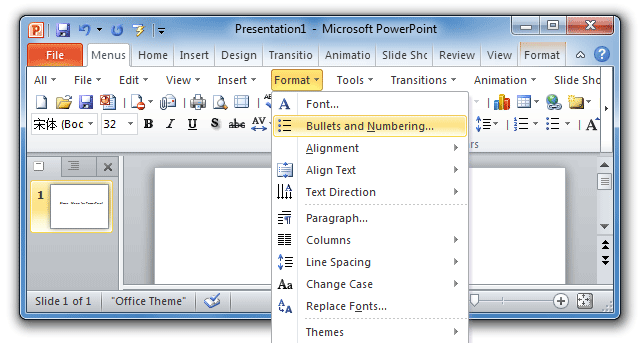
Key points in a presentation often use bulleted lists. Bullets can be anything from standard points like • to fancier symbols like ☺.


Click in the area labelled “Click to add title”. Type “Reasons why I like ” and then type the name of your favourite style of music.
Click in the area labelled “Click to add text”. Type a reason why you like the chosen style of music. Press Enter to begin a new line and type another. Enter between 3 and 5 reasons for liking that type of music.Keep them short, remember they are bulletpoints.

Click in the title and type “Popular [whatever music style you picked] Artists”


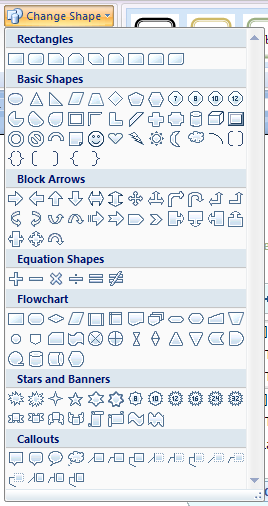 Under Stars and Banners select the 5 point Star. You will notice that the SmartArt textbox has changed. You be the judhe of the text is too small or not. You an always hit the Undo button.


A useful link for Powerpoint 2010 tutorials is
http://www.powerpoint-2010.com/
Here is a videoclip showing you the possibilities of Powerpoint 2010
Powerpoint 2010: The Possibilities - Duarte HD
Uploaded by MicrosoftEurope on 8 Dec 2009
http://www.microsoft.eu
Creating a New Presentation
The first slide in a presentation is usually a title slide, and is used to introduce your presentation.
As the 1st presentation you are going to be doing involves doing on "Myself", the type of music or sport you are interested in would be a suitable mini exercise to try out your ideas (as well as saving some of the work needed for your assignment).
- Type in the “Click to add title” slide the name of your favourite style of music. E.g. Rock, rap, trance, funky industrial free-style acid-jazz or R&B.
- Type in the space labelled “Click to add subtitle” your name. Press [Enter] and then type the name of your class. E.g. “Year 1 7ITA”.
Save the file as “Myself Music I like Presentation 1” in your H drive or on your USB stick in a powerpoint folder which you have already created (if you have not done so yet, do so now). If you save it as 97-2003 version when you click Save As, it will be compatible with older versions of Powerpoint you may have at home.
Creating A New Slide
Click the New Slide button. Notice that if you select the top part of the New Slide icon, Powerpoint will automatically select a new Title and Content slide layout. However, if you select the bottom part of the icon, a drop-down list will appear and you can select whatever type of slide layout you wish.
Creating Bulleted Lists

Click in the area labelled “Click to add title”. Type “Reasons why I like ” and then type the name of your favourite style of music.
Click in the area labelled “Click to add text”. Type a reason why you like the chosen style of music. Press Enter to begin a new line and type another. Enter between 3 and 5 reasons for liking that type of music.Keep them short, remember they are bulletpoints.
Adding a ClipArt Slide
“A picture is worth a thousand words”. Pictures not only add visual interest but also assist in getting your message across. Clipart is used to add pictures to your presentations. With PowerPoint you have a choice of several layouts that include clipart.
- Create a new slide
- . In the New Slide Layout task pane, scroll down until you see “Two Content" and select it
Click in the title and type “Popular [whatever music style you picked] Artists”
Select Insert and SmartArt in order to group your favourite music artist’s in a more attractive way. The SmartArt Graphic box will appear. The list on the left opens up a series of methods of presenting your text. Certain methods are more relevant than others depending on the presentation. Choose from the list on the left Cycle and choose Basic Cycle for this exercise and click OK.
Enter 3 to 6 well known artists for the style of the presentation in the text boxes you see.
4. In the content area on the right, click the clipart icon and a clipart browser window will appear.The same process is incolved for pictures, movies and charts with the different icons below
Choose one of the pictures shown or use the box at the top to search for certain types of pictures with keywords (E.g. “Dancing” or "guitar"). If you would rather use a picture you have saved then click the Import button to browse for the file. Once you have selected an appropriate picture, click the OK button and the chosen picture will be inserted.
Now lets say you are looking at your SmartArt text on the left and you would like to make things a little flashier. Right-click on one of the textboxes and scroll down to change shape.
Adding a WordArt Slide
Word art is used to create special effects with text that you cannot select by formatting the font. You can create curves, angles, waves, 3-D effects and many more.
- Create a new slide.
2. Change the slide layout once again, this time choosing the “Blank” layout (Right-click on the 4rth slide in the slide pane on the left, scroll down to layout, and select Blank). You should now have a slide that is completely blank
2. From the Insert ribbon at the top of the screen, click the WordArt icon.
Choose a text layout and then click OK.
You can choose formatting options and type your text. Type a slogan that describes your chosen music style and click OK. The WordArt will appear in the centre of your slide.
6. You may notice a small green dot that you can drag to rotate the text.
Change the Shape Fill colour and experiment with the Shape Outline and Shape Effects. You can also Edit Shape or decide you want to change the Text Fill or Text Outline. Any action you are unhappy with can always be cancelled by the magic Undo button.
This video shows you how to create a presentation using Powerpoint 2007.The clip shows
how to create your own slides and add headings, bulleted lists, and pictures. It is similar to the 2010 version. Built-in layouts are also shown to organize your slide content. You can also see how the Preview feature helps you choose theme colors and background design. Pause and go over the video as many times as you wish as there is a lot covered.
Youtube Video
PowerPoint 2007 Demo: Create a basic presentation quickly
Uploaded by DemoTrainer on 7 Jan 2008
You should now have 4 slides in your presentation. Save to your H drive and/or USB. You will be using this again
Wednesday, 18 January 2012
Digital Presentations Assignment 2 Design and Information Gathering
Useful videos for the Design and Information Gathering Assignment
What is Design
Uploaded by wburnett1957 on Sep 19, 2007
Copyright Perspectives: No, You Stole It
WHERE GOOD IDEAS COME FROM by Steven Johnson
Preparing for a presentation
Uploaded by Speakfirst on Jul 20, 2009
Ep 1. How to Prepare a Presentation - Presentation Skills - Public Speaking
The importance of a good presentation
Primary vs. Secondary Sources
Uploaded by TheHartnessLibrary on Aug 2, 2010
Mr. D's Class - Sources: Primary vs. Secondary
Primary vs. Secondary Sources Video using September 11, 2001
Life After Death by Powerpoint 2010
A Example What Keynote CAN Do While PowerPoint CAN'T.
Apple iPad Keynote Tutorial - How to use Keynote on iPad
Basic Presentation Structure
Uploaded by jaygehrman on Apr 7, 2011
What is Plagiarism? (Part 1 of 3)
Plagiarism: Real Life Examples (Part 2 of 3)
The Cite is Right: The Quiz Show (Part 3 of 3)
What is Design
Uploaded by wburnett1957 on Sep 19, 2007
Copyright Perspectives: No, You Stole It
Uploaded by wburnett1957 on Sep 19, 2007
WHERE GOOD IDEAS COME FROM by Steven Johnson
Uploaded by RiverheadBooks on Sep 17, 2010
Preparing for a presentation
Ep 1. How to Prepare a Presentation - Presentation Skills - Public Speaking
Uploaded by BananaManaTV on Apr 6, 2010
The importance of a good presentation
Uploaded by JaiVikramSinghVerma on Nov 19, 2007
Primary vs. Secondary Sources
Mr. D's Class - Sources: Primary vs. Secondary
Uploaded by MrDsClass on Apr 1, 2011
Primary vs. Secondary Sources Video using September 11, 2001
Uploaded by NAT77764 on Sep 23, 2010
Life After Death by Powerpoint 2010
Uploaded by donmcmillancomedy on Nov 9, 2009
A Example What Keynote CAN Do While PowerPoint CAN'T.
Uploaded by DerekLeeCHN on Jul 11, 2008
Apple iPad Keynote Tutorial - How to use Keynote on iPad
Uploaded by socubeliveg on Aug 31, 2010
Basic Presentation Structure
What is Plagiarism? (Part 1 of 3)
Uploaded by paulrobesonlibrary on Nov 13, 2007
Plagiarism: Real Life Examples (Part 2 of 3)
Uploaded by paulrobesonlibrary on Nov 13, 2007
The Cite is Right: The Quiz Show (Part 3 of 3)
Uploaded by paulrobesonlibrary on Nov 13, 2007
Own Your Education - Plagiarism
Own Your Education - Plagiarism
Uploaded by DrTheodorRichardson on Mar 28, 2010
Uploaded by psutlt on Aug 28, 2008
Tuesday, 27 September 2011
Sell Yourself Digital Presentation Course
Sell Yourself
Digital Presentations module
Starting 27/09/2011
Tuesdays & Wednesdays 3:30 – 4:45
O'Fiaich College Dundalk
Room 49
limited numbers
If you have enrolled in the Digital Presentation course in O'Fiaich College, classes start today at 3.30 on Tuesdays and Wednesdays in Room 49.
Benefits to you attending this subject:
1)Learn to present with the newest presentation software
- Powerpoint 2010
- Keynote
- iPads
Presenting with the most relevant tools for today's workforce can help give you a
competitive edge in the workplace. Familiarising yourself with Microsoft and Apple
computers as well as iPads could help give you a competitive advantage in the
workplace while also making your position within the business you work for stronger.
competitive edge in the workplace. Familiarising yourself with Microsoft and Apple
computers as well as iPads could help give you a competitive advantage in the
workplace while also making your position within the business you work for stronger.
Powerpoint 2010 will have many new tricks and features which have the capability
for you to deliver more exciting presentations
for you to deliver more exciting presentations

 |
| Keynote presentation software for Apple computers |


iPads and other mobile tablets are revolutionising how we can give presentations, sales pitches and advertisements for our companies while not being tied to a computer or laptop
2) Lose your fear of public speaking
Public speaking for many can be a daunting prospect, yet often it is what can set you apart from your employees. Many of us fear it, many of us avoid it, Throughout your college career you will be asked to give presentations at every level of education. No matter how much of an expert you are about whatever topic you are going to present, you will need to consider how can you make your presentation dynamic and effective enough to engage your audience?

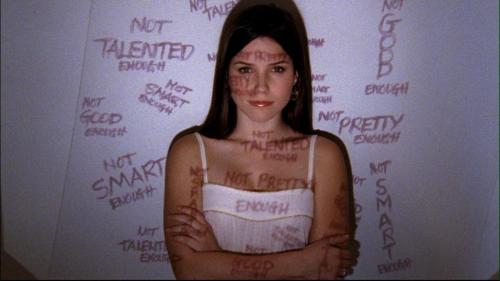
Maybe you feel that you are not talented enough, you are on public display in front of everyone and you are wondering how can you perform well. Perhaps the prospect of presenting fills you with dread? Yet if you are a supervisor in a company you are going to have to make presentations to employees or management or to customers and suppliers. If you are a student working hard on a piece of work for college do you not want people to know why your work is so important or will you sell yourself short? Or worse, will you get someone else to present your ideas? How long are you going to put this off for? This subject will help give you the tools to overcome doubts and fears.


 |
| When presentations don't target their audience |

3) Get a competitive edge over your classmates
By attending this class and passing this subject you will have an extra subject added to your course. Yes I know it may be annoying doing an extra class at 3:30 but at the end of the year you will have the documentation to say that not only did you do an extra class that your friends didn't do but also your end of year results show that you can present well. Remember you will be competing against the people on your courses for the same jobs so you have to think bout how you are going to stand out from the rest.
When all you are is a CV in a bundle of CV applications for an employer or for a course in college, this subject can indicate to them that you won't have a problem getting up in front of an audience and presenting your work, which is an essential component for numerous college courses. Therefore, you are increasing your chances to be called for interview in the next step uf your career path.
You will also be more confident in an interview as a result of doing this subject.


The jobs market is certainly more difficult than it was a few years ago. This video is taken
from Primetime in 2009 and gives a snapshot of Ireland's economic performance in
2008. I'm including it here for a number of reasons
1. This video shows the power of an effective digital presentation while making it relevant to you if you are an Irish 21st century student
2. It provides you with statistics about Ireland to make a more informed decision about your career path
Ireland's Economic Meltdown
4) Become more creative and fight to get your voice heard
Learn to develop more effective methods through digital presentations to get people to follow your idea or business or blog


Attendance Rules

Due to the high demand for the course you will be expected to attend throughout the year. There is a waiting list to attend this subject.Many of you who are on the waiting list may find a space or two available for you if there are any no shows.
As this subject is optional there will be a 3 strikes and you're out policy. In other words, failure to inform me that you won't be attending my class on a particular day will earn you a strike. 3 strikes and I will bring someone else on the waiting list in to take your place. You can always email me to inform me why you can't attend before class and you won't receive a strike. My email is marcus.howard@ofi.ie
If you feel you won't be able to commit to the subject, you MUST let me know as soon as possible as you are making it unfair to the person who will take your place. Hope you enjoy the subject and you find a way to use it to help you on your career path

Friday, 9 September 2011
Digital Presentations Week 1 what makes a good presentation?
We are going to look at what makes a good presentation. Composing your thoughts on what makes a great presentation will help you become aware of how you can improve yours.

Have a look at this presentation by Jamie Oliver at the Tedtalks in 2010. In this presentation he talks about educating children about food and fighting obesity.
Youtube Video Jamie Oliver's TED award speech.
Uploaded by JamieOliver on Feb 12, 2010
1.Do you think it was a good or bad presentation?
2.Why do you think it is good or bad?
3.What points made were most effective in this presentation?
4.How would you describe the body language of this presenter?
5.Do you think the slides used on the screen were effective?How?
6.Were the statistics in this presentation easily understandable?
7.Jamie Oliver is a celebrity chef from the UK giving a presentation to an American audience.How do you think he prepared the presentation to make it relevant to that audience?
8.How effective were the props in this presentation? Eg The wheelbarrow or sugarcubes?
9.Was there any point where you were lost in the presentation?If so why do you think this was?
10.Do you think he achieved his aim with this presentation?
What do you think his aim was with that presentation?
If the contents of the Jamie's presentation interested you, you can get more information at this link

Have a look at this presentation by Jamie Oliver at the Tedtalks in 2010. In this presentation he talks about educating children about food and fighting obesity.
Youtube Video Jamie Oliver's TED award speech.
1.Do you think it was a good or bad presentation?
2.Why do you think it is good or bad?
3.What points made were most effective in this presentation?
4.How would you describe the body language of this presenter?
5.Do you think the slides used on the screen were effective?How?
6.Were the statistics in this presentation easily understandable?
7.Jamie Oliver is a celebrity chef from the UK giving a presentation to an American audience.How do you think he prepared the presentation to make it relevant to that audience?
8.How effective were the props in this presentation? Eg The wheelbarrow or sugarcubes?
9.Was there any point where you were lost in the presentation?If so why do you think this was?
10.Do you think he achieved his aim with this presentation?
What do you think his aim was with that presentation?
If the contents of the Jamie's presentation interested you, you can get more information at this link
Thursday, 8 September 2011
Digital Presentations Collection of Work Assignment
You are expected to produce and deliver three 5 minute presentations and 2 reports which accompany them. The reports are the evidence that you have developed a range of digital presentation skills.
The 3 presentations required are:
1-Myself (minimum 8 slides)
2-How to.... (minimum 12 slides, pick something that interests you and don't overuse one website, you will be expected to have references at the back of your report)
3-Hometwown (minimum 15 slides, you must use charts explaining statistics and demographics relating to your hometown as well as images.Remember to reference at the back of your report
You must be able to show in your presentations and reports the following:
-you can implement a variety of different slide layouts
-you can use transitions
-you have appropriate timing (not too short or too long.5 mins approx)
-you can navigate through your slides correctly (demonstrates rehearsal as well as knowledge of presentation software used)
-you can apply various animation effects
-that you can deliver the presentation effectively
Your report must include all the prepartory work involved (including proper referencing of website articles and pictures). The report must also feature:
-the aims and objectives of the presentation
(what are you trying to achieve and how are you going to do it?)
-the target audience
(who are they, will you have to tailor your presentation with those people in mind? Eg if you are presenting to the members of a particular business or I.T. Class, should it be a more formal presentation or not? How would this differ to presenting to work colleagues?)
-a critical review of the presentation
(after you have completed your presentation, what kind of feedback did you get. It is recommended that you write down some of the comments that were made, to see where can be improved?Use this constructive criticism to make your next presentation even better.)
The 3 presentations required are:
2-How to.... (minimum 12 slides, pick something that interests you and don't overuse one website, you will be expected to have references at the back of your report)
3-Hometwown (minimum 15 slides, you must use charts explaining statistics and demographics relating to your hometown as well as images.Remember to reference at the back of your report
You must be able to show in your presentations and reports the following:
-you can implement a variety of different slide layouts
-you can use transitions
-you have appropriate timing (not too short or too long.5 mins approx)
-you can navigate through your slides correctly (demonstrates rehearsal as well as knowledge of presentation software used)
-you can apply various animation effects
-that you can deliver the presentation effectively
Your report must include all the prepartory work involved (including proper referencing of website articles and pictures). The report must also feature:
-the aims and objectives of the presentation
(what are you trying to achieve and how are you going to do it?)
-the target audience
(who are they, will you have to tailor your presentation with those people in mind? Eg if you are presenting to the members of a particular business or I.T. Class, should it be a more formal presentation or not? How would this differ to presenting to work colleagues?)
-a critical review of the presentation
(after you have completed your presentation, what kind of feedback did you get. It is recommended that you write down some of the comments that were made, to see where can be improved?Use this constructive criticism to make your next presentation even better.)
Advice For Your Presentation:
Do's
1. Introduce yourself by name.
2. Bring back up visual aids in case your PowerPoint presentation fails.
3. Slow down when you are speaking.
4. Make eye contact with the audience.
5. Smile.
6. Ask for questions from the audience at the conclusion of the presentation.
Don't:
1. Show paragraphs or long sentences on the screen.
1. Show paragraphs or long sentences on the screen.
2. Use fussy and distracting backgrounds.
3. Overdo punctuation: very little is needed in a visual aid.
4. Use over-complicated diagrams, which the audience won't be able to see clearly.
5. Use unnecessary and distracting movement on the screen.
6. Watch the computer screen instead of the audience.
7. Assume that you can use the equipment without trying it out.
Here is a video with useful tips to enhance the delivery of your presentation.
Youtube Video Tips for Effective Presentation Skills - Power Point
Uploaded by learnexmumbai on 9 Feb 2010
Here is a video with useful tips to enhance the delivery of your presentation.
Youtube Video Tips for Effective Presentation Skills - Power Point
What The Reports Must Include:
· The Aims and Objectives of the presentation (Why you are doing it? What do you hope to achieve?)
· The Target audience
· Preparatory work(How are you going to do it?)
Photo Reference List:(URL’s of pictures you have used from the internet, references,print screens of slides outlining any drawings, transitions, animations, formatting or clipart you have done)
When presentations are completed and performed the student must hand up a critical review detailing how it went and where it could have been improved upon.
Ideas For the "Myself" Presentation
1. General information
a. Name, dob, born where…
2. Family
a. Number of brothers and sisters…
3. Education
a. Primary Secondary School
b. Secondary School
4. Favourite subjects
a. Academic achievements
5. Interests/hobbies
a. Sport
b. Clubs/Societies
6. Current education
a. College
b. Subjects
7. Use of IT
a. PowerPoint
b. The Internet
c. Applications of particular interest
8. Future Plans
a. University
b. Employment
9. Countries visited
a. France
b. Spain
c. US
10. Countries you’d like to visit
11. Favourite movies
12. Favourite actors/actresses
13. Favourite Sports stars
14. Political beliefs – member of party
15. Hometown
Conclusion
Here is a good example of someone presenting themselves. It is by Randy Pausch, a former professor of computer science from Carnegie-Mellon University in Pennsylvania, who was diagnosed with pancreatic cancer in 2006 and given only a few months to live. He decided to give a series of upbeat presentations entitled "The Last Lecture: Really Achieving Your Childhood dreams". This is an abridged version he has given on the Oprah show in October 2007 although the longer version is one of the most popular down loads on Youtube:
Subscribe to:
Posts (Atom)